Establishing a Connection with the Equipment
Use SecsHost to add a connection, open HSMS, establish communications, inspect request/response viewers, and request ON-LINE — including GEM Local vs Remote.
- 1
Initial screen
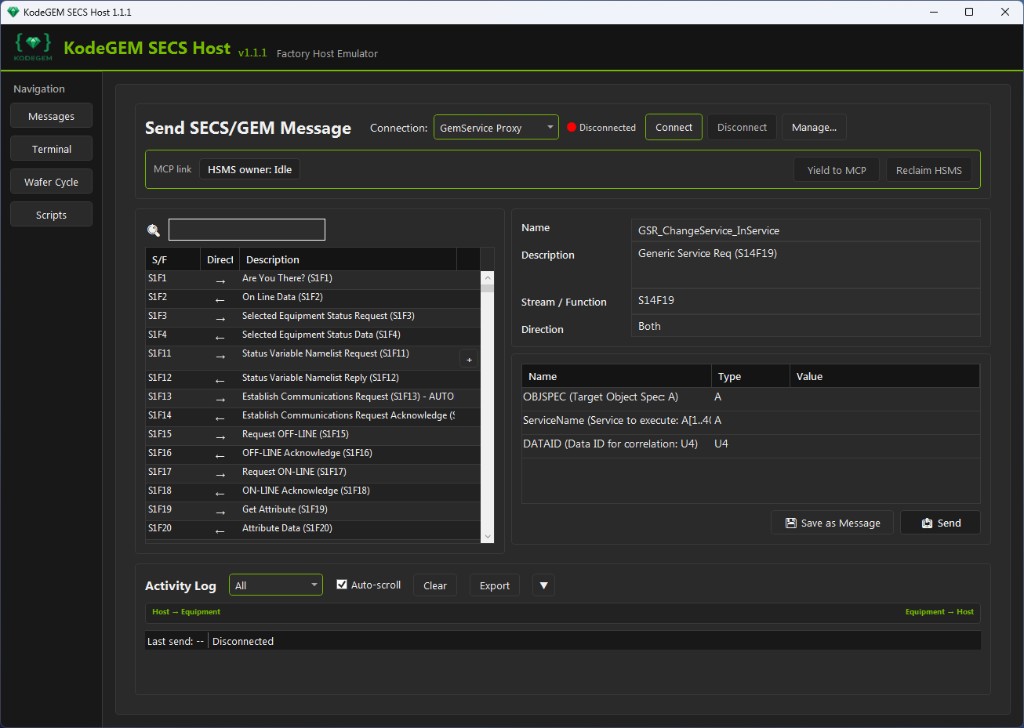
Launch SecsHost. The Message Workspace is your home screen: connection toolbar on top, Messages / Terminal / Wafer Cycle / Scripts in the left nav, a searchable SxFy catalog, parameter editor, and the Activity Log.
Until a connection is selected and live, status shows Disconnected and Send stays disabled for host-initiated traffic that needs an HSMS session.
- 2
Open Connection Manager
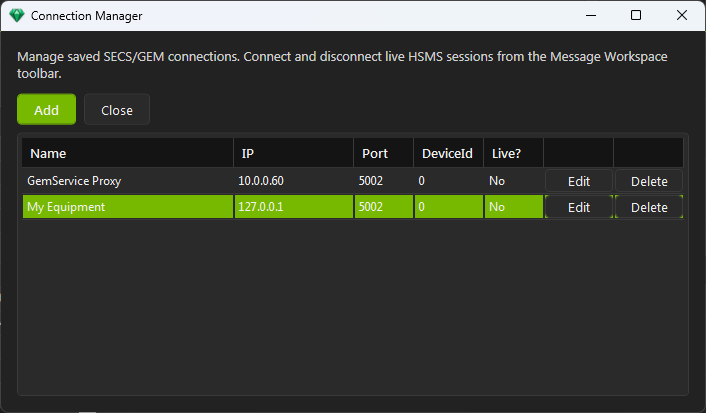
Click Manage… in the connection toolbar. Connection Manager lists saved SECS/GEM endpoints (name, IP, port, device id, and whether a session is live).
Live connect and disconnect still happen from the Message Workspace toolbar; this dialog is for adding, editing, and deleting saved connections.
- 3
Add a connection — settings
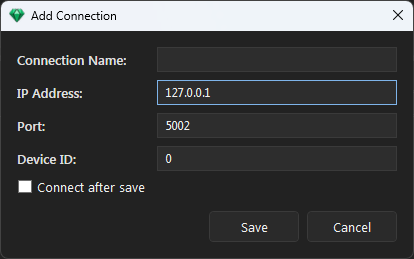
Click Add to open Add Connection.
Connection Name — Friendly label shown in the Connection dropdown (for example My Equipment).
IP Address — Equipment HSMS endpoint (loopback 127.0.0.1 for local simulators, or the tool PC address on the fab LAN).
Port — HSMS TCP port the equipment listens on (5002 is common in demos; match your tool or exerciser).
Device ID — HSMS session / device id placed in data-message headers (often 0 or 1; must match the equipment configuration).
Connect after save — Optional: open the HSMS session immediately after saving. You can leave this unchecked and connect from the toolbar later.
- 4
Connection selection
Close Connection Manager. In the Message Workspace toolbar, open the Connection dropdown and select the connection you just saved (for example My Equipment).
The toolbar always operates on the currently selected connection. Switching the dropdown does not by itself disconnect another live session — use Disconnect when you need a clean handoff.

- 5
Connect to equipment
Click Connect. SecsHost opens a live HSMS session to the selected IP and port and completes Select (when the peer accepts).
When the link is up, the status indicator turns green and shows Connected. Disconnect closes the session; Manage… returns to connection records.

Hover Connect for a short reminder: it opens a live HSMS session for the selected connection. - 6
Establish communications (Active vs Passive)
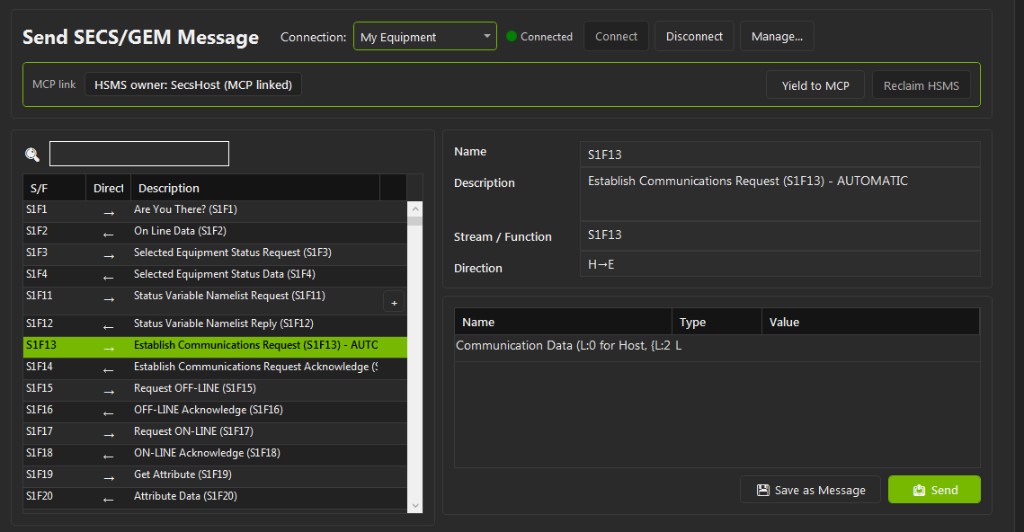
With HSMS Selected, select S1F13 — Establish Communications Request — and Send. That starts the GEM communication-state handshake on top of the transport link.
Active mode (typical SecsHost host role): the host dials the equipment IP:port and sends Select.req. Use this when the tool listens for incoming host connections.
Passive mode: the host listens on IP:port and waits for the equipment to dial in and select. Use this when fab policy or the tool expects the equipment to initiate TCP.
Mismatch (wrong role, port, or device id) is the most common reason Select fails or the session never reaches Selected. Match the tool’s published HSMS role and device id before blaming GEM messages.
- 7
Equipment communicating
On a compliant GEM tool UI you will typically see Communications Enabled and state Communicating after a successful establish-comms exchange.
Control state may still show Offline (or Offline / Local) until an ON-LINE request is accepted and the operator allows Local or Remote. Spooling is separate: it buffers messages when the link is down and is often Disabled during bench bring-up.
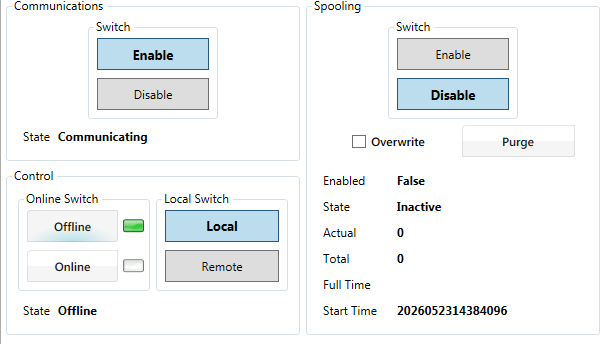
Example equipment-side GEM panels after communications are up; control may remain Offline until S1F17. - 8
Message Response Viewer
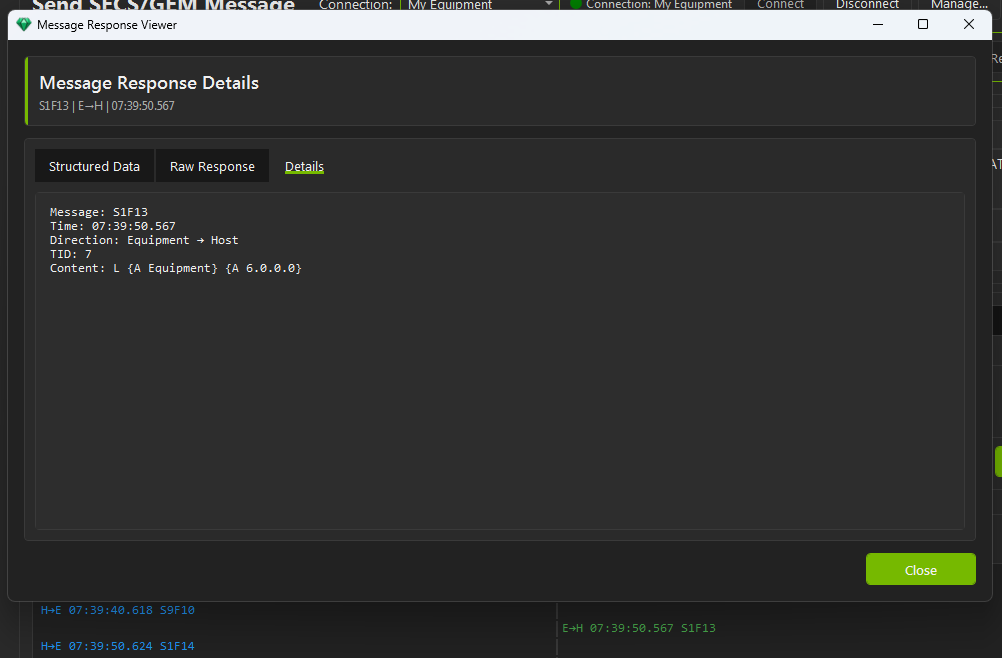
When the equipment sends a primary (or you receive a secondary reply), open it from the Activity Log to inspect the Message Response Viewer.
Tabs: Structured Data (parsed fields), Raw Response (wire-oriented text), and Details (SxFy, time, direction, TID, content summary). Use this to confirm MDLN/SOFTREV, ACK codes, and unexpected bodies before the next host send.
- 9
Message Request Viewer
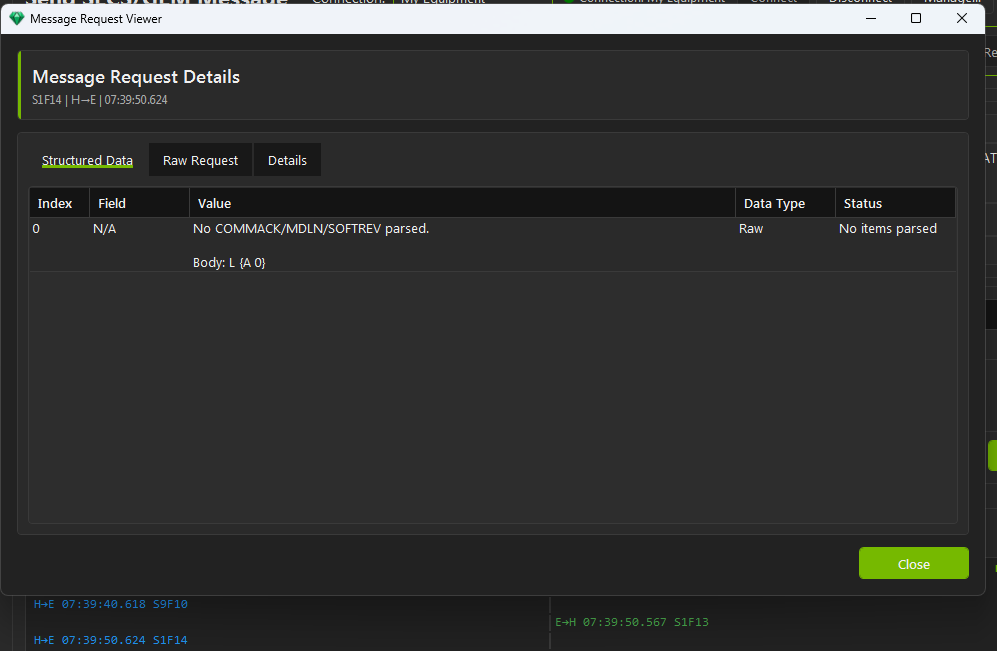
Host→equipment traffic can be opened the same way as a Message Request Viewer — same tab layout for Structured Data, Raw Request, and Details.
After an equipment-initiated S1F13, the host often answers with S1F14. Confirm COMMACK (and empty host body when required) here so you know the establish-comms pair completed cleanly.
- 10
Request ON-LINE
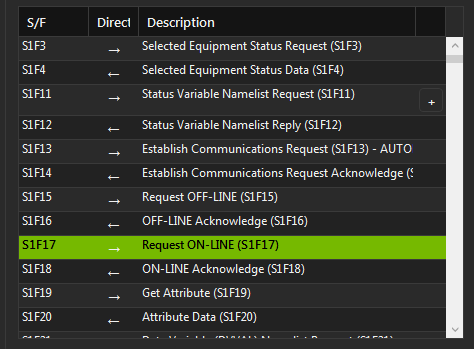
Select S1F17 — Request ON-LINE — and Send. This asks the equipment to leave OFF-LINE and enter an ON-LINE control state.
Whether you land in ON-LINE LOCAL or ON-LINE REMOTE is not decided by S1F17 alone; see GEM control states below.
- 11
Request accepted — toward Online Remote
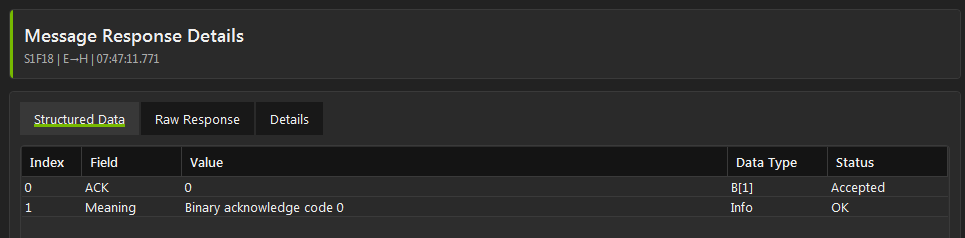
A successful reply is S1F18 with ACK / ONLACK = 0 (Accepted) in the Message Response Viewer Structured Data tab.
From there, the tool’s Local/Remote switch (physical or software) usually determines whether the host has monitor-only (Local) or full operational control (Remote). Some vendors also accept an S2F41 host command with a custom RCMD, subject to that local permission.
GEM control states
In the SEMI SECS/GEM standard, transitioning control states between Local and Remote is typically initiated by the equipment operator via a physical or software switch, rather than a direct host command message. However, the host uses S1F17 (Request ON-LINE) to go online, and the sub-state (Local vs. Remote) relies on the tool’s internal state configuration or specific vendor-defined S2F41 Host Command Send parameters.
GEM control states
- OFF-LINE
- The machine does not allow remote automated control.
- ON-LINE LOCAL
- The local operator has priority; the host can monitor data but cannot execute commands.
- ON-LINE REMOTE
- The factory host has full read-write and operational control.
Transition methods
- Operator switch
- The standard way to enter Remote mode is via the tool’s front panel or software GUI toggle.
- Host request
- Some equipment implementations accept an S2F41 host command with a custom RCMD parameter to request a control mode change, subject to local switch permissions.